 Coming soon to Android & iPhone
PDF Reader: Scan, Edit & Sign
Scan paper into searchable PDFs, sign contracts in seconds, and merge, split, compress or convert files — all processed on your device. A tidy library and a comfortable reader keep every document one tap away.


What is PDF Reader: Scan, Edit & Sign?
PDF Reader: Scan, Edit & Sign is a PDF app by TechKhedut, coming soon to Android and iOS. It scans paper into searchable PDFs with OCR, signs documents, and merges, splits, compresses, converts, rotates, reorders and prints PDFs, with every tool running on your device and a library to organize your files.
Best for
- Students & teachers
- Freelancers & small businesses
- Office & remote teams
- Anyone signing forms on the go
Your whole paperwork desk, in your pocket
Read, scan, sign and fix PDFs in one simple app — no printer, no scanner, no desktop software, and no uploading your documents to someone else's server.
- 10PDF tools, from merge to print
- 6Scan modes, from ID cards to books
- 8Scan filters for clean pages
- Processed on your device

Every PDF, organized and ready to open
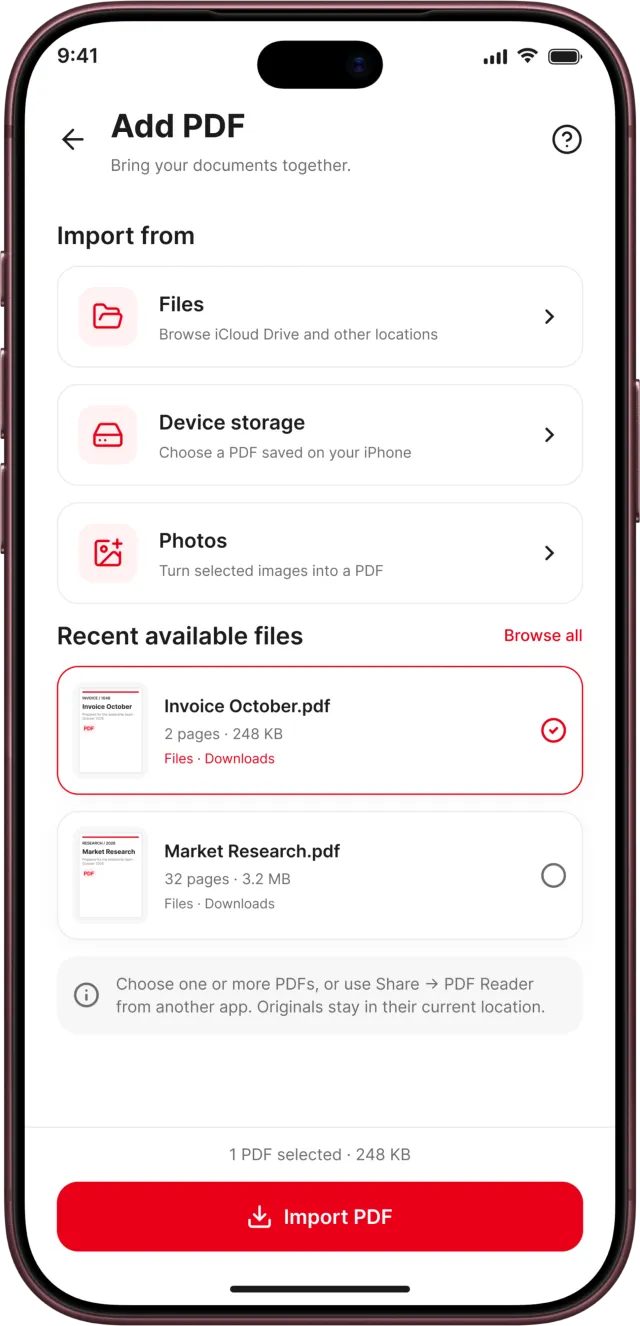
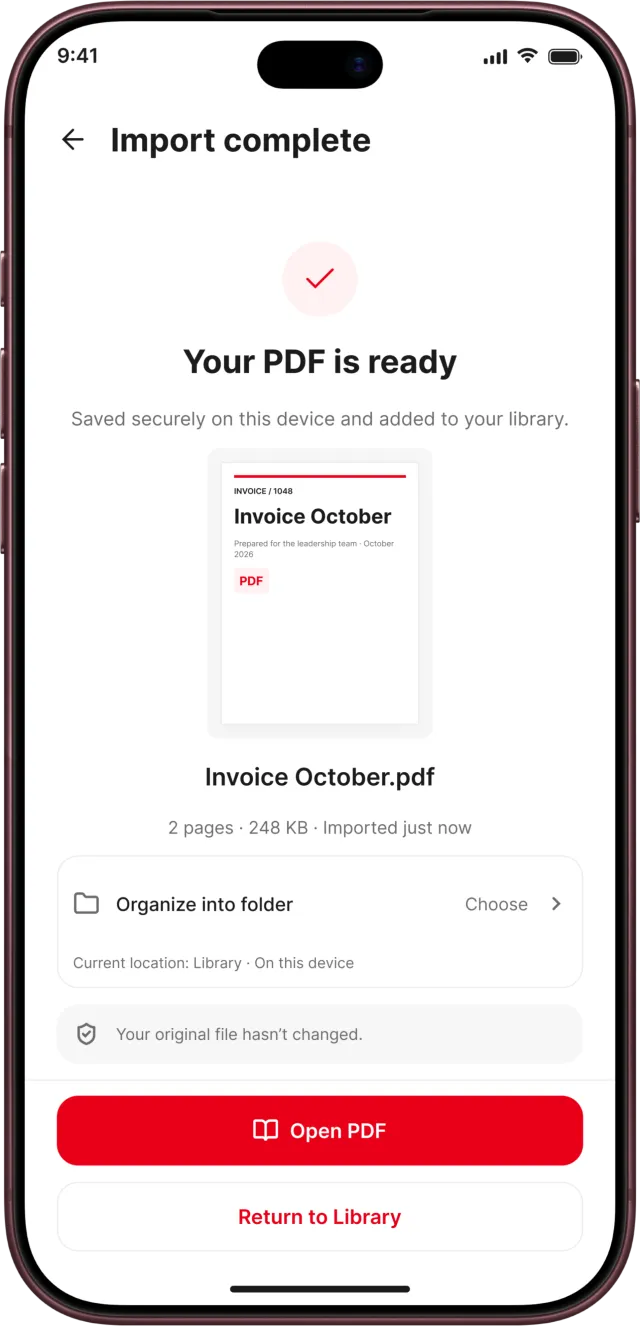
Bring in PDFs from Files, iCloud Drive, Google Drive or your photos. Each one is copied into the app, so it still opens if the original moves — and damaged, empty, password-protected and duplicate files are caught at the door.
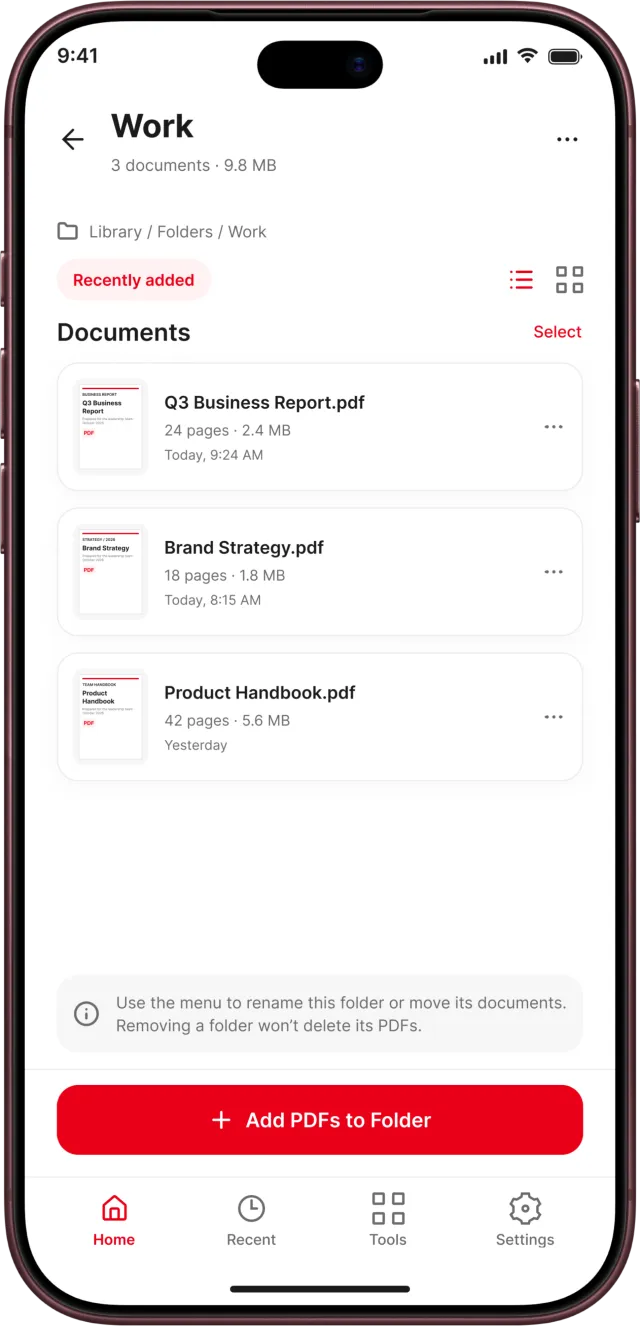
- Folders you can create, rename, sort and fill in bulk
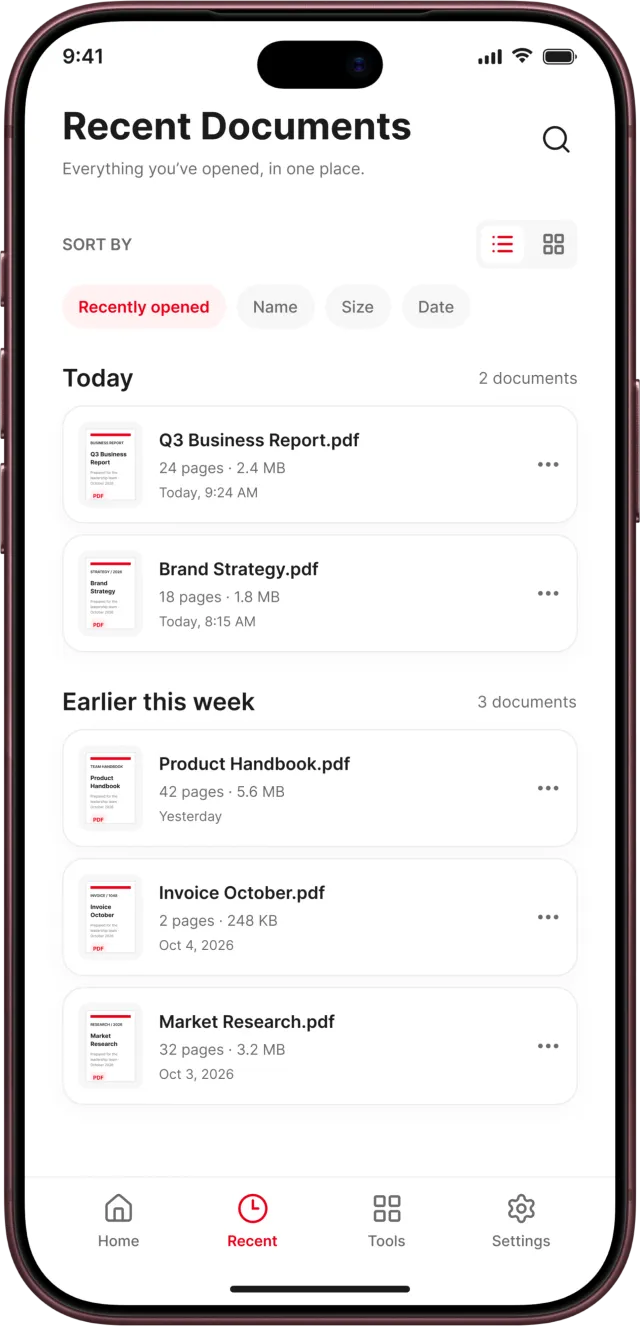
- Recent in a list or grid, grouped by Today, This week and Earlier
- Search file names and the text inside every PDF
- Document details with preview, pages, size and dates
- Rename, move, share, save to Files or sign from one place

Scan paper into crisp, searchable PDFs
Point your camera at a page and the scanner finds its edges live, then captures it the moment the shot is steady, sharp and free of glare. Clean it up, pick a filter and save — with an OCR text layer, so every word is searchable.
- Auto-capture that checks steadiness, sharpness and glare
- ID cards front and back on one page, and books split and flattened
- Dark screens and slides handled with lower exposure and Invert
- Crop with a magnifier, rotate, retake and drag to reorder
- Clean up marks on the page before you save


Read your way — and pick up where you left off
Swipe page by page or scroll continuously, read single pages or two-page spreads, and let Auto-fit size every page to your screen. Each PDF reopens on the page you were reading, even after you rotate your iPad or go split screen.
- Horizontal or vertical reading, single page or spreads
- Remembers your last page in every document
- Bookmark cards with the page heading, a snippet and Continue Reading
- Filter, sort and remove bookmarks, with Undo


Merge, split, compress and convert — right on your phone
Every tool runs on your device, so nothing is uploaded and nothing waits on a connection. Each one saves a new copy and tells you what it will do before it does it, so your original stays safe.
- Merge PDFs in any order and choose the output name and folder
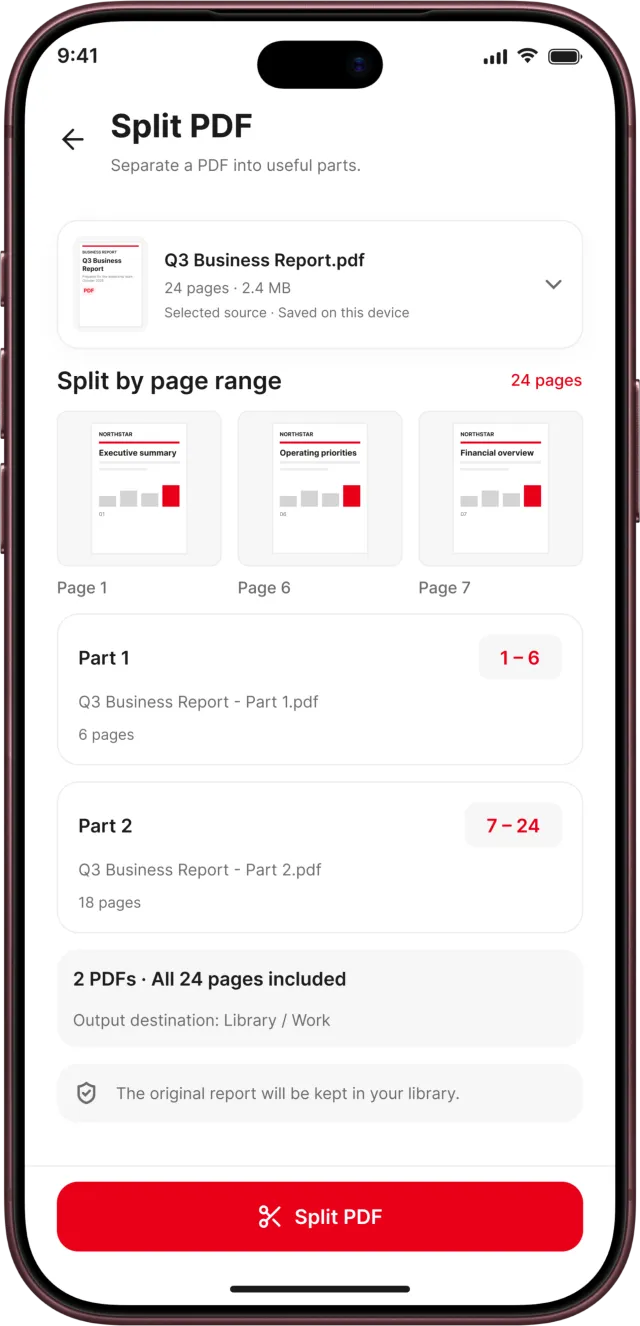
- Split into page ranges that are checked as you type
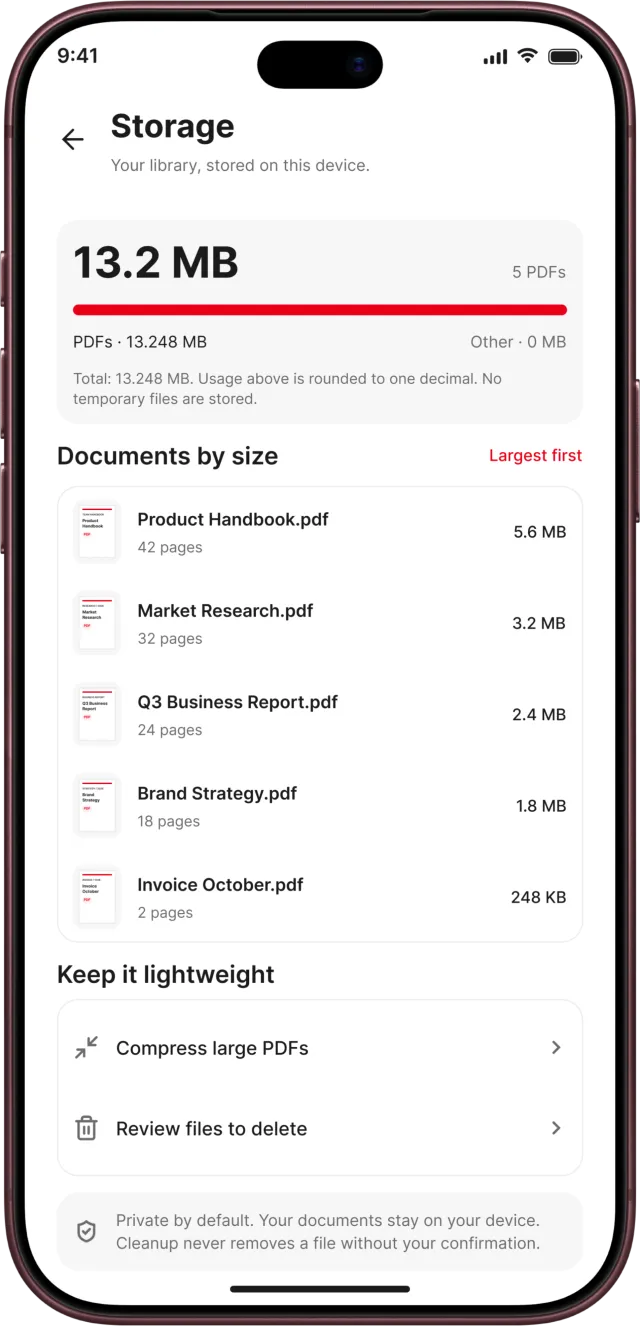
- Compress with a size estimate — saved only if it's smaller
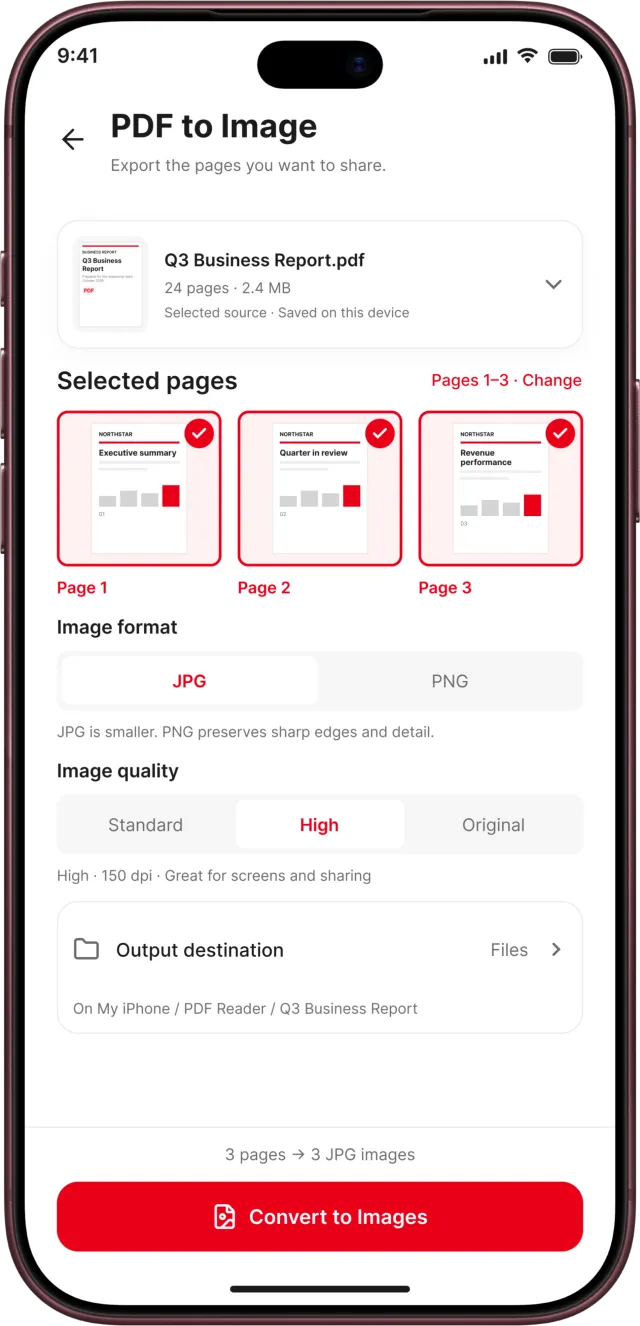
- PDF to Image and Image to PDF in the sizes you need
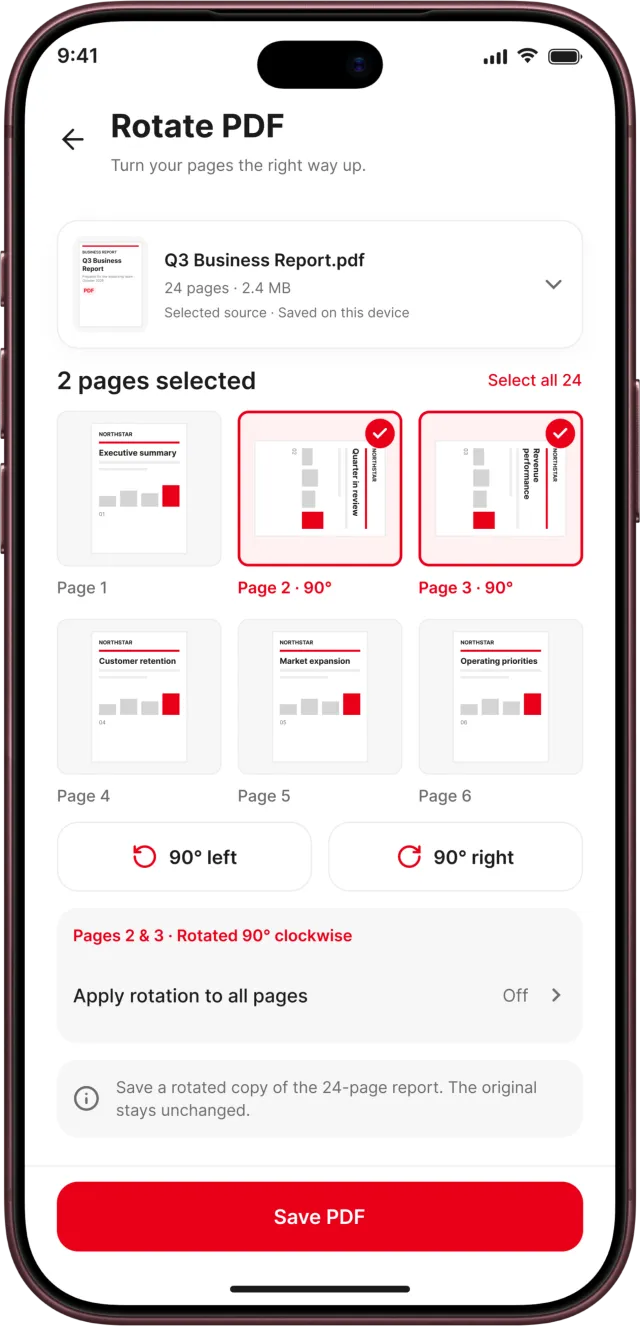
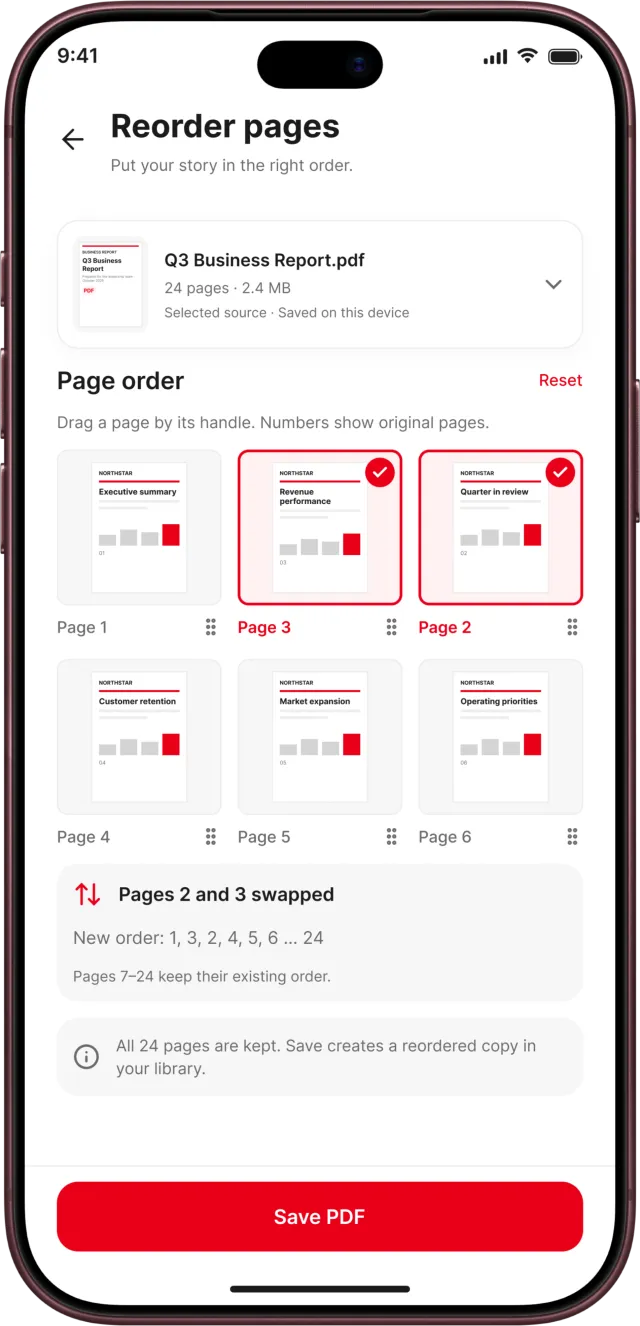
- Rotate, reorder, delete and extract pages, then print

Sign contracts and forms without printing a page
Add your signature, initials, the date or a line of text to any page. Drag, resize and rotate each item until it sits exactly on the line, then save a signed copy to share.
- Signatures, initials, date and text on any page
- Move, resize, rotate and change the ink colour
- Duplicate or apply to all pages, with undo and redo
- Up to 6 signatures and 6 initials, drawn, scanned or from a photo
- Automatic background cleaning for scanned and photo signatures
38 features, one app
From page-level edits and e-signatures to OCR scanning and a library that finds any word — everything you need to handle documents on the go.
PDF tools
-
Merge PDF
Combine several PDFs, drag to reorder, then name the file and pick its folder.
-
Split PDF
Split into multiple page ranges, checked for gaps and overlaps as you type.
-
Compress PDF
High quality, Balanced or Smallest, with a size estimate before you save.
-
PDF to Image
Export any pages as JPG or PNG at 96, 150 or 300 dpi.
-
Image to PDF
Reorder photos and choose A4, Letter, Legal or the image size.
-
Rotate Pages
Turn pages one by one or all together, without re-rendering.
-
Reorder Pages
Drag pages into place by a handle, with Reset.
-
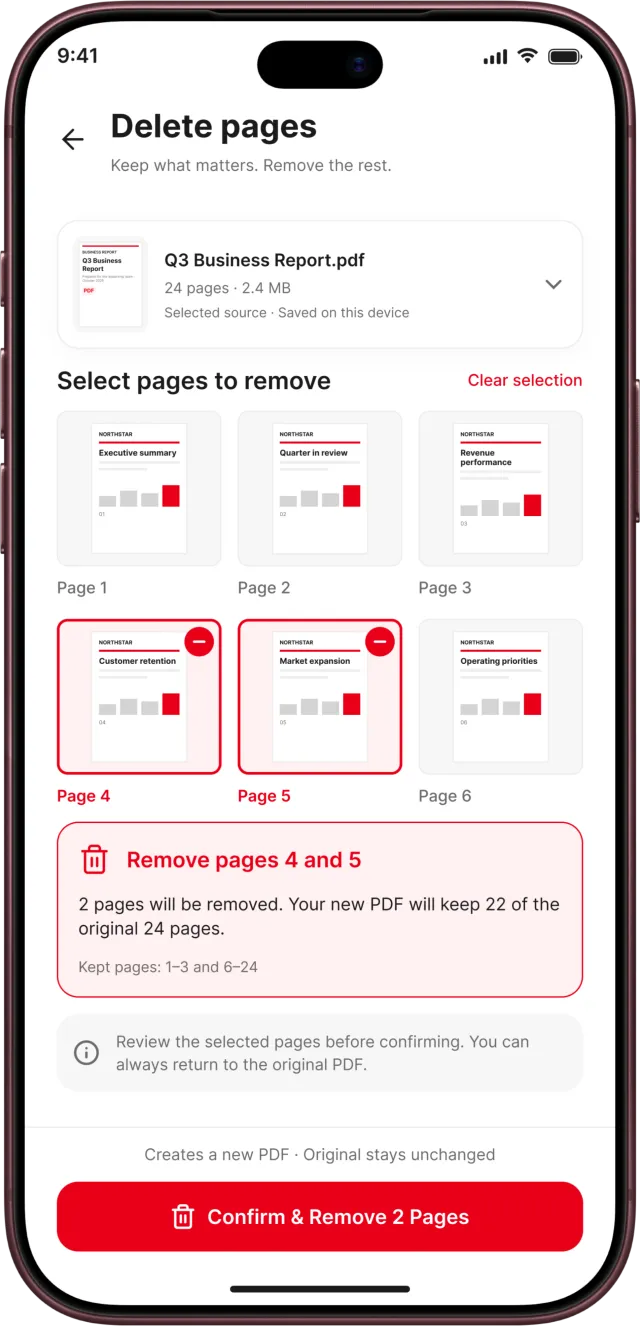
Delete Pages
Pick pages to remove and see a summary of what is kept.
-
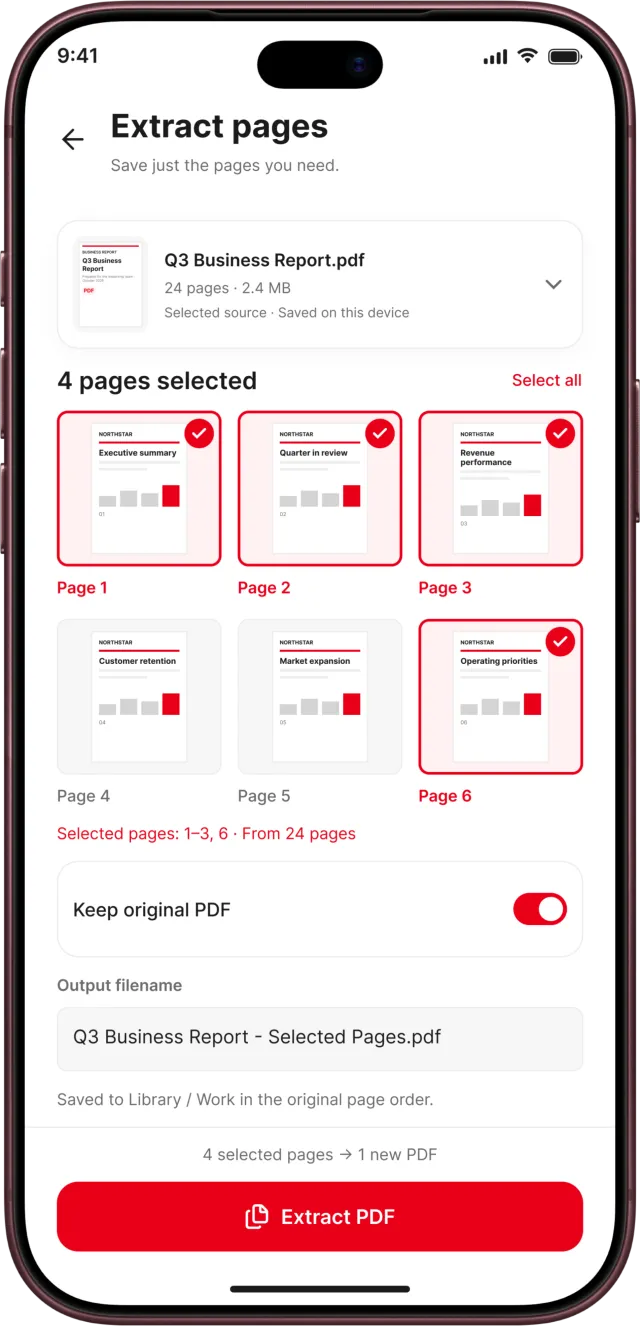
Extract Pages
Save chosen pages as a new PDF, optionally removing the originals.
-
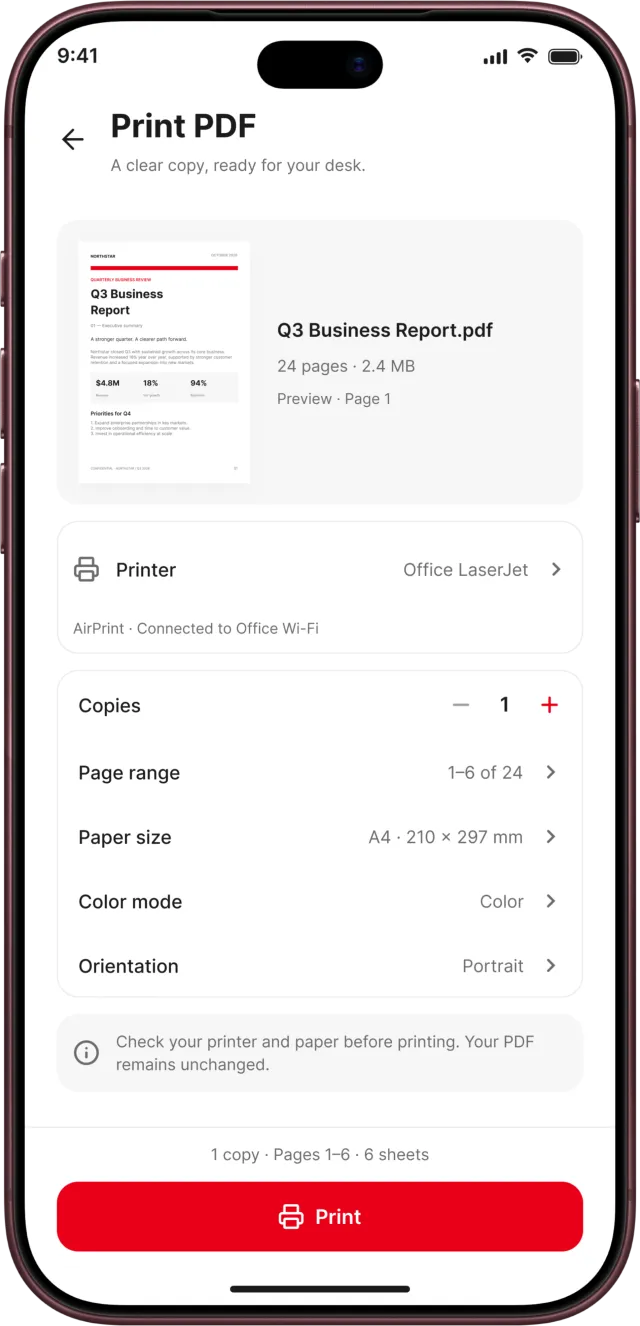
Print
Copies, page range, paper size, colour and orientation. AirPrint on iOS.
Sign
-
Sign Any Page
Place signatures, initials, the date or text anywhere on a page.
-
Move, Resize & Rotate
Position every item exactly where it belongs.
-
Ink Colour
Change the ink colour of any signature or text.
-
Duplicate & Apply to All
Copy an item, or add it to every page at once.
-
Undo & Redo
Step back and forward through every change.
-
My Signatures
Keep up to 6 signatures and 6 initials ready to reuse.
-
Background Cleaning
Signatures scanned from paper or picked from a photo come out clean.
Document scanner
-
Edge Detection
Finds the page live and auto-captures when it is steady, sharp and glare-free.
-
Scan Modes
All, Document, ID Card, Book, Whiteboard and Photo.
-
Dark Screens & Slides
Lowers exposure, offers an invert filter and suggests one for you.
-
Crop & Arrange
Crop with a magnifier and snapping, rotate, retake, delete and reorder.
-
Filters
Eight filters plus brightness and contrast.
-
Clean Up
Paint over marks and smudges on the page.
-
OCR Text Layer
Scanned text becomes searchable inside the PDF.
-
Save as PDF or JPG
Three output sizes, and scans stay editable later.
Library
-
Import PDFs
From Files, iCloud Drive, Google Drive or device storage.
-
Photos to PDF
Pick photos and they become a single PDF.
-
Folders
Create, rename, sort and delete folders, and move files in bulk.
-
Document Details
Preview, page count, size, dates, location and quick actions.
-
Recent
List or grid, grouped by Today, This week and Earlier.
-
Bookmarks
Saved pages with their heading and a snippet, and Continue Reading.
-
Search
Find file names and text inside PDFs, with the hit highlighted.
Reader
-
Horizontal Paging
Swipe page by page with snapping.
-
Vertical Scrolling
Continuous reading from top to bottom.
-
Two-Page Spreads
Read one page at a time or side by side.
-
Auto-fit
Pages fit the screen automatically.
-
Resume Reading
Every PDF opens on the page you left off.
-
iPad & Split Screen
Adapts to rotation and split screen without losing your place.
Clear screens for serious paperwork
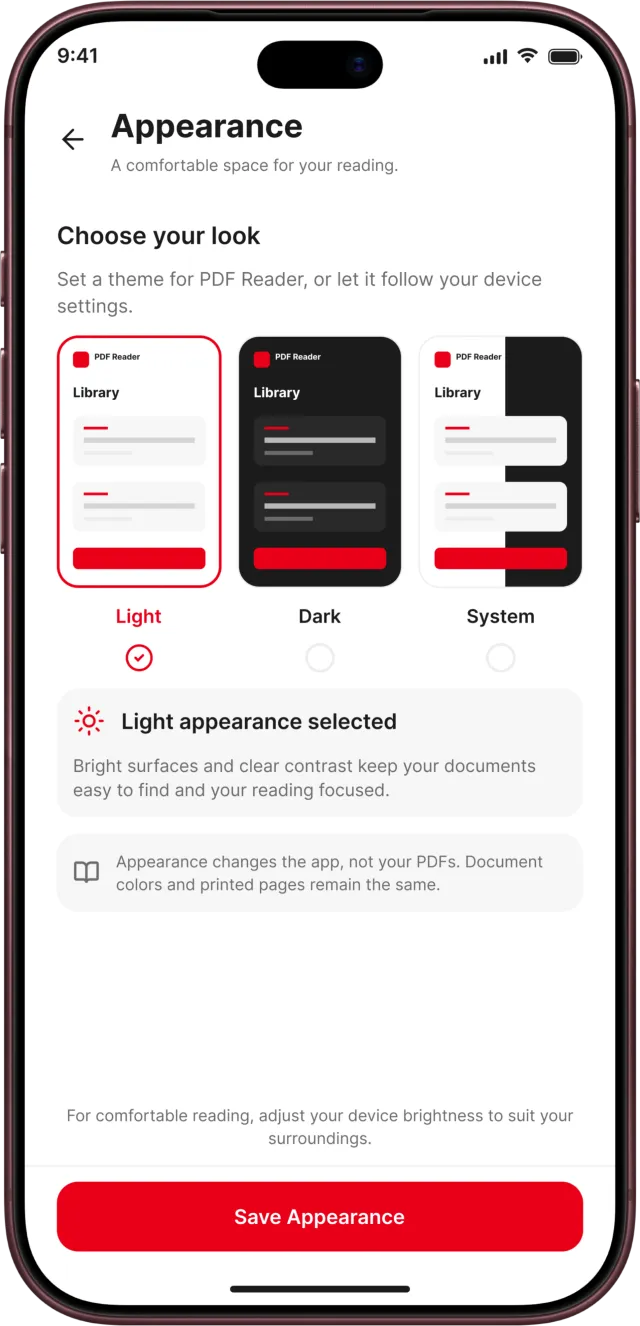
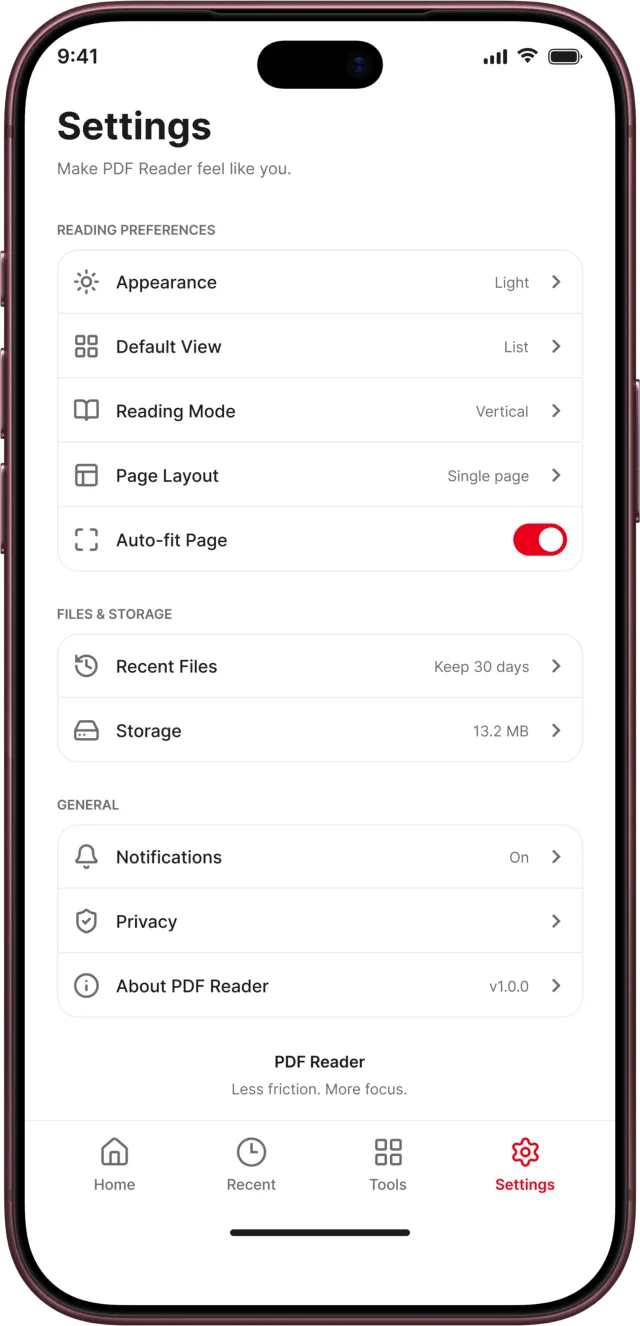
Every tool tells you what it will do before it does it, with your original kept safe — in light or dark mode.
The right scan for every kind of paper
Pick a mode and the scanner adjusts how it finds and shapes the page — or leave it on All and let it find any surface or text. Then choose a filter to make the result as clear as possible.
- Original
- Auto color
- Light text
- Grayscale
- B&W
- Whiteboard
- Screen
- Invert
- JPG
- Three output sizes
- Searchable OCR text
- Edit again later
Your documents stay on your device
Your library is stored on your phone and every tool works on the device. Here's why PDF Reader asks for each permission — and you can change your choices anytime in your phone's settings.
Camera
Used only when you scan a document or scan your signature from paper.
Photos
Turns photos you pick into PDFs, lets you use a signature photo and saves exported images.
Files & storage
Imports the PDFs you choose and saves copies to Files or Downloads when you ask.
Printing
Sends a PDF to your printer through AirPrint on iOS or the system print dialog on Android.
Read the full Privacy Policy, Terms & Conditions and Refund Policy.
What is PDF Reader: Scan, Edit & Sign?
PDF Reader: Scan, Edit & Sign is a mobile app by TechKhedut for reading, organizing, editing and signing PDFs, with a built-in document scanner. It brings a PDF library, a comfortable reader, 10 PDF tools, e-signatures and OCR scanning together in one app.
Is PDF Reader available on iPhone and Android?
PDF Reader: Scan, Edit & Sign is coming soon to Google Play for Android and the App Store for iPhone and iPad. Download links appear on this page as soon as each store listing is live.
Are my documents uploaded anywhere?
No. PDFs you import and documents you scan are kept on your device, and every PDF tool — merge, split, compress, convert, rotate, reorder, delete, extract and sign — runs on the device too. Files leave your phone only when you choose to share, save or print them.
How do I scan a document to PDF?
Open the scanner and point your camera at the page. Edge detection finds the document and captures it automatically once the shot is steady, sharp and free of glare. Crop, rotate, reorder pages and pick a filter, then save it as a PDF or JPG.
Can I search the text in scanned documents?
Yes. Saved scans get an OCR text layer, so scanned text is searchable. Search in the app matches both file names and the text inside your PDFs, highlights the hit and shows the page it is on.
How do I sign a PDF?
Open Sign PDF and place a signature, initials, the date or text on any page. Move, resize and rotate each item, change its ink colour, duplicate it or apply it to every page, with undo and redo. Save up to 6 signatures and 6 initials by drawing them, scanning them from paper or picking a photo — scanned and photo signatures get their background cleaned automatically.
Which PDF tools are included?
Merge PDF, Split PDF, Compress PDF, PDF to Image, Image to PDF, Rotate Pages, Reorder Pages, Delete Pages, Extract Pages, Print. Each tool saves a new copy, so your original PDF stays unchanged unless you choose to remove it.
Can I import PDFs from iCloud Drive or Google Drive?
Yes. Import from Files, device storage (including iCloud Drive or Google Drive) or Photos — photos are turned into a single PDF. Imported PDFs are copied into the app, so they still open if the original file moves. Damaged, empty and password-protected PDFs are refused at import, and duplicates are caught.
Who is PDF Reader for?
Students and teachers scanning notes and handouts, freelancers and small businesses signing contracts and sending invoices, office and remote teams merging and sharing reports, and anyone who needs to sign a form or scan a document on the go — without a printer, a scanner or desktop software.
Which permissions does the app need?
The camera is used for the document scanner and for scanning a signature from paper; photo access lets you turn photos into PDFs, pick a signature from a photo and save exported images; file access lets you import PDFs and save copies to Files or Downloads. You can change these choices any time in your phone's settings. See the privacy policy for details.
Scan it, sign it, send it — in minutes
PDF Reader: Scan, Edit & Sign is coming soon to Google Play for Android and the App Store for iPhone and iPad.
Privacy Policy Terms & Conditions Refund Policy Support
Designed & developed by TechKhedut — see our iOS and Android app development services.